カテゴリー: Linux

  • Raspberry PiからLGのディスプレイをRS232C経由で制御する

    Raspberry PiからLGのディスプレイをRS232C経由で制御する

    LGの4Kモニター「43UD79-B」を利用していますが,赤外線リモコンでは電源トグル操作のみ可能です.一方でRS232C経由でコマンドを送信することで,電源のon/offを個別に制御できるようです.

    必要なハードウェア

    Raspberry Pi

    Raspberry PiのGPIOはUART(シリアル通信)をサポートしていますが,3.3Vロジックレベルです.そのため,直接RS232C機器に接続するとRaspberry Piが壊れる恐れがあります.

    レベル変換基板

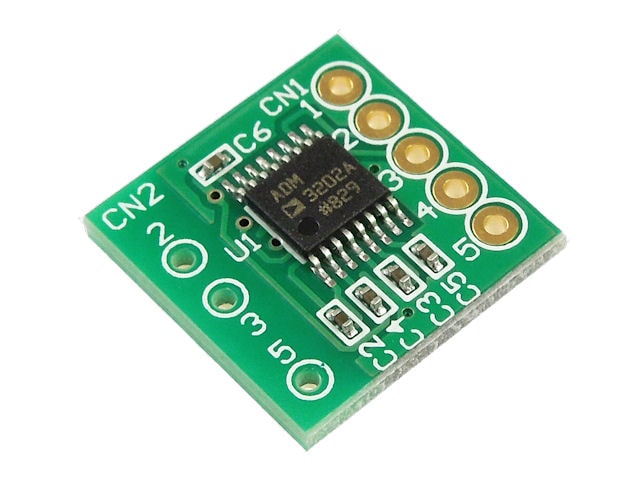
    Raspberry PiとRS232Cの間にレベル変換基板を挟むひつようがあります.今回は秋月電子通商にて3V・3.3V・5V系-RS232レベル変換基板のAE-ADM3202を購入しました.

    クロスケーブル

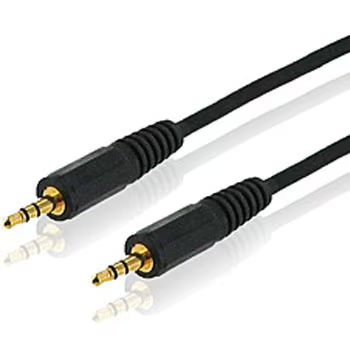
    LG 43UD79のRS232C端子は3.5mm 4極ジャック(TRS)のクロスケーブルが必要となります.今回は不要なイヤフォンを切断してAE-AMD3202に直接接続します.

    接続方法

    配線

    AE-ADM3202とTRSケーブルの接続

    AE-ADM3202 CN2TRSケーブル
    2 (TXD)Ring
    3 (RXD)Tip
    5 (GND)Sleeve

    AE-ADM3202とRaspberry Piの接続

    AE-ADM3202 CN1Rapsberry Pi GPIO
    1 (GND)Ground
    2 (TX-IN)GPIO 14
    3 (RX-OUT)GPIO 15
    4 (VCC) [U1の電源入力]3.3V Power
    5 (電源) [U2の電源流力]無接続

    Raspberry Piの設定

    Raspberry Piでシリアル通信を有効にするために,ターミナルでraspi-configを起動します.

    $ sudo raspi-config

      メニューから Interface Options > Serial Port を選択し,以下の質問に答えます.

      • Would you like a login shell to be accessible over serial? → No
      • Would you like the serial port hardware to be enabled? → Yes

      これにより,/dev/ttyAMA0が有効になります.

      動作確認

      電源ONコマンドを送信してみます.

      $ echo -e "ka 01 01\r" > /dev/ttyAMA0

      電源OFFコマンドを送信してみます.

      $ echo -e "ka 01 00\r" > /dev/ttyAMA0

      トラブルシューティング

      接続ピンの確認

      ケーブルの接続が正しいか確認してください.

      ディスプレイの Set ID を確認

      ディスプレイのSetIDは「01〜10」の範囲で設定可能です.ディスプレイの「menu>General>Set Id」を確認してください.Set IDが02の場合,コマンドは ka 02 01\r のようになります.

      あとはスマートホームなどと連携すれば「ディスプレイ点けて/消して」を操作できるようになりますね.

    1. LinuxでSATAのHDDをホットスワップで取り出す

      BIOSでSATAポートがホットプラグに対応している場合,ハードウェアレベルでSATAのHDDを安全に取り出すことが可能.

      OSがデバイスの取り出しを認識していない場合,IOが発生しているとデータ消失などが発生するため,以下ので順で取り出しを行う.

      1. マウント解除
      2. デバイスを認識解除
      3. HDDを取り出す

      マウント解除

      HDDがマウントされている場合はマウントを解除します

      # umount /dev/sdX

      デバイスを認識解除

      デバイスがマウント解除されたら,Linuxカーネルから安全にデバイスを削除します

      # echo 1 | tee /sys/block/sdX/device/delete

      Linuxカーネルからデバイスが削除されていることはfdiskなどで確認することができます

      # fdisk -l

      HDDを取り出す

      Linuxカーネルからデバイスが削除されていることが確認できたら物理的にHDDを取り出します.

    2. Raspberry piでPPPoE接続する

      Raspberry piでPPPoE接続する

      Raspberry piでPPPoE接続してルータとして動作するように設定する.

      インストール

      pppoeconfをインストールします

      # apt install pppoeconf

      起動

      # pppoeconf
      1. ネットワークインタフェースを検出
      2. ユーザ名とパスワードを入力
      3. 設定の保存

      接続の開始

      # pon dsl-provider

      接続の終了

      # poff dsl-provider

      自動起動設定

      # vi /etc/network/interfaces
      
      auto dsl-provider
      iface dsl-provider inet ppp
      pre-up /bin/ip link set eth1 up
      provider dsl-provider

      確認

      $ ip addr
      
      ...中略
      X: ppp0: <POINTOPOINT,MULTICAST,NOARP,UP,LOWER_UP> mtu 1454 qdisc pfifo_fast state UNKNOWN group default qlen 3
          link/ppp 
          inet xxx.xxx.xxx.xxx peer xxx.xxx.xxx.xxx/32 scope global ppp0
             valid_lft forever preferred_lft forever
    3. Raspberry Pi (buster) のアップグレード

      Raspberry Pi (buster) のアップグレード

      長らく放置していたRaspberry Pi 3 Model Bが3台,busterな機体をアップグレードします.

      /etc/apt/sources.listおよび/etc/apt/sources.list.d/*.listのすべての「buster」という単語を「bullseye」に置き換えます

      その後アップデートを行います.

      $ sudo apt update

      依存関係によりアップグレードに失敗するので以下をインストールします.インストール中の選択肢は全て「Yes」

      $ sudo apt install libgcc-8-dev gcc-8-base

      アップグレードします.アップグレード中の選択肢は全て「Yes」

      sudo apt full-upgrade

      そして/boot/config.txt を編集します.

      「dtoverlay=vc4-fkms-v3d」を含む行の先頭に # 記号を付けてコメント アウトします.
      ファイルの下部の [all] セクションに「dtoverlay=vc4-kms-v3d」という行を追加します.これは「kms」であり「fkms」ではないことに注意.

      再起動して無事に起動すれば成功.

      参考:https://forums.raspberrypi.com/viewtopic.php?t=323279

    4. Raspberry Pi でオーディオサーバを作る

      Raspberry Pi でオーディオサーバを作る

      Raspberry Pi model B と Sound Blaster X-Fi Go! Pro が転がっていたので,これらを利用してオーディオサーバを構築します.

      今回はShairport-Syncとmpd (Music Player Daemon)を構築します.

      インストールと設定

      # apt install shairport-sync mpd

      Sound Blasterのハードウェア番号を確認します.

      $ aplay -l
      **** List of PLAYBACK Hardware Devices ****
      card 0: Headphones [bcm2835 Headphones], device 0: bcm2835 Headphones [bcm2835 Headphones]
        Subdevices: 8/8
        Subdevice #0: subdevice #0
        Subdevice #1: subdevice #1
        Subdevice #2: subdevice #2
        Subdevice #3: subdevice #3
        Subdevice #4: subdevice #4
        Subdevice #5: subdevice #5
        Subdevice #6: subdevice #6
        Subdevice #7: subdevice #7
      card 1: vc4hdmi [vc4-hdmi], device 0: MAI PCM i2s-hifi-0 [MAI PCM i2s-hifi-0]
        Subdevices: 1/1
        Subdevice #0: subdevice #0
      card 2: Pro [Sound Blaster X-Fi Go! Pro], device 0: USB Audio [USB Audio]
        Subdevices: 0/1
        Subdevice #0: subdevice #0

      Sound Blaster X-Fi Go! Pro が hw:2,0と分かったので,shairport-syncの設定ファイル(/etc/shairport-sync.conf)を編集します

      # 抜粋
      general = 
      {
          interpolation = "soxr";
          output_backend = "alsa";
      };
      
      alsa =
      {
          output_devce = "hw:2.0";
          mixer_control_name = "PCM";
          mixer_device = "PCM";
      };

      Shairport-syncを起動します.

      # systemctl enable --now shairport-sync

      次にmpdの設定ファイル(/etc/mpd.conf)を編集します.ただし,NASのmpd用のディレクトリを/mnt/mpdにマウントしている前提です.

      # 抜粋
      music_directory    "/mnt/mpd/music"
      playlist_directory "/mnt/mpd/playlists"
      bind_to_address    "0.0.0.0"
      port               "6600"
      
      audio_output {
          type           "alsa"
          name           "Alsa Device"
          device         "hw:2,0"
          mixer_type     "software"
      }

      mpdを起動します.

      # systemctl enable --now mpd
    5. SSHの設定を再確認

      Ubuntu 22.04でsshサーバの設定 /etc/ssh/sshd_config を行っていたところ,PasswordAuthentication no を設定していたにもかかわらず,パスワード認証が無効になっていなかった.

      原因としては/etc/ssh/sshd_config.d/50-cloud-init.confPasswordAuthentication yesの記述があったため,こちらの設定が優先されていた.

      加えて,ChallengeResponseAuthentication または
      KbdInteractiveAuthenticationyes かつ UsePAMyes の場合,pam設定がデフォルトの場合もパスワードによる認証のみでログインできてしまう.これはpamによる2段階認証などを提供する仕組みである.

      これを機にSSHの設定の見直しを行った.

      sshd_config の先頭に
      Include /etc/ssh/sshd_config.d/*.conf があり,sshd_config.d内の.confをファイル名順に参照し,先勝ちでパラメータが設定されているようである.(システムによっては上書きになるものもあるのでややこしい)

      公開鍵認証

      /etc/ssh/sshd_config.d/00-publkey-auth.conf を作成

      PermitRootLogin no
      PubkeyAuthentication yes
      PasswordAuthentication no

      50-cloud-init.confは必要ないのであれば削除しても良いだろう.

      2段階認証

      パスワード認証 + Google Authenticatorによる認証を行う.公開鍵認証とは別に動作することに注意.

      パッケージのインストール

      # apt install libpam-google-authenticator libqrencode4

      /etc/pam.d/sshdを編集します.

      auth required pam_google_authenticator.so

      /etc/ssh/sshd_config.d/100-google-authenticator.confを作成します.

      KbdInteractiveAuthentication yes
      UsePAM yes

      sshdを再起動します.

      # systemctl restart ssh

      ユーザーの設定 google-authenticatorコマンドを実行

      $ google-authenticator
      Do you want authentication tokens to be time-based (y/n) y
      Your new secret key is: **************************
      Enter code from app (-1 to skip): 

      QRコードを読み取るか,Secret keyを設定してコードを取得します.

      ワンタイムコードを入力するか-1を入力すると以下のように設定項目に関する質問があります.デフォルトで問題ないので全てyを選択します.

      Your emergency scratch codes are:
        ********
        ********
        ********
        ********
        ********
      
      Do you want me to update your "/home/user/.google_authenticator" file? (y/n) y
      
      Do you want to disallow multiple uses of the same authentication
      token? This restricts you to one login about every 30s, but it increases
      your chances to notice or even prevent man-in-the-middle attacks (y/n) y
      
      By default, a new token is generated every 30 seconds by the mobile app.
      In order to compensate for possible time-skew between the client and the server,
      we allow an extra token before and after the current time. This allows for a
      time skew of up to 30 seconds between authentication server and client. If you
      experience problems with poor time synchronization, you can increase the window
      from its default size of 3 permitted codes (one previous code, the current
      code, the next code) to 17 permitted codes (the 8 previous codes, the current
      code, and the 8 next codes). This will permit for a time skew of up to 4 minutes
      between client and server.
      Do you want to do so? (y/n) y
      
      If the computer that you are logging into isn't hardened against brute-force
      login attempts, you can enable rate-limiting for the authentication module.
      By default, this limits attackers to no more than 3 login attempts every 30s.
      Do you want to enable rate-limiting? (y/n) y

      sftp

      ファイルサーバなどでsftpやscpのみに制限する.

      /etc/ssh/sshd_config.d/50-sftp.conf を作成する

      AllowTcpForwarding no
      x11Forwarding no
      ForceCommand internal-sftp

      ForceCommand internal-sftpを指定することにより,sshすると
      This service allows sftp connections only. とメッセージが表示されconnectionがcloseされる.

    6. virsh console接続設定

      virsh console接続設定

      シリアル通信設定

      # vi /etc/default/grub
      
      GRUB_CMDLINE_LINUX="console=tty0 console=ttyS0,115200n8"

      GRUBの更新

      Ubuntu

      # update-grub

      CentOS

      # grub2-mkconfig -o /boot/grub2/grub.cfg

      シリアルサービスを有効化

      systemctl enable --now serial-getty@ttyS0

      再起動

      ホスト設定

      # virsh edit <ゲスト>
      
      <device>
        <serial type='pty'>
          <target port='0'/>
        </serial>
        <console type='pty'>
          <target type='serial' port='0'/>
        </console>
      ...

    7. TensorFlow.js の備忘録

      TensorFlow.js の備忘録

      EMNISTをPythonで学習した後,TensorFlow.jsでブラウザ上で文字認識を行うところまでの備忘録.

      環境

      • Ubuntu 24.04
      • Python3.8

      Jupyter環境の整備

      jupyterhubをインストールしてサービスを作成します.

      # apt install nodejs npm
      # npm install -g configurable-http-proxy
      # python3 -m venv /usr/local/share/jupyterhub
      # source /usr/local/share/jupyterhub/bin/activate
      (jupyterhub)# pip install jupyter jupyterhub jupyterlab matplotlib numpy

      jupyterhubの設定ファイルを作成します.venvを利用しているので,jupyterhub-singleuserのパスを通すか以下編集します.

      (jupyterhub)# mkdir -p /etc/jupyterhub
      (jupyterhub)# cd /etc/jupyterhub
      (jupyterhub)# jupyterhub --generate-config
      (jupyterhub)# vi /etc/jupyterhub/jupyterhub_config.py
      
      c.Spawner.cmd = ['/usr/local/share/jupyterhub/bin/jupyterhub-singleuser']

      jupyterhubのサービスを作成します.ServiceUserを作成した方が良いでしょう.

      # vi /etc/systemd/system/jupyterhub.service
      
      [Unit]
      Description=JupyterHub
      After=network.target
      
      [Service]
      User=root
      ExecStart=/usr/local/share/jupyterhub/bin/jupyterhub -f /etc/jupyterhub/jupyterhub_config.py
      WorkingDirectory=/var/lib/jupyterhub
      Restart=always
      
      [Install]
      WantedBy=multi-user.target

      jupyterhubのサービスを起動します.

      # mkdir -p /var/lib/jupyterhub
      # systemctl daemon-reload
      # systemctl start jupyterhub

      Python3.8とTensorFlowのインストール

      TensorFlow.jsがPython3.8でないとうまく動かないという情報があったため,Python3.8をインストールして利用する.またjupyterから利用するためにkernelを登録する

      # add-apt-repository ppa:deadsnakes/ppa
      # apt update
      # apt install -y python3.8 python3.8-distutils python3.8-venv
      $ python3.8 -v venv tensorflow
      $ source tensorflow/bin/activate
      (tensorflow)$ pip install tensorflow tensorflowjs matplotlib ipykernel
      (tensorflow)$ python3 -m ipykernel install --user --name tensorflow --display-name "Python 3.8 (TensorFlow)" 

      学習

      kaggleのemnistデータセットをダウンロードします.

      $ #!/bin/bash
      curl -L -o ~/Downloads/archive.zip\
      https://www.kaggle.com/api/v1/datasets/download/crawford/emnist
      $ unzip archive.zip

      適当にモデルを作成,学習します.

      import tensorflow as tf
      import numpy as np
      from tensorflow.keras import layers
      from tensorflow.keras import losses
      import os
      import pandas as pd
      DATA_DIR = "."
      TRAIN_CSV = os.path.join(DATA_DIR, "emnist-letters-train.csv")
      TEST_CSV = os.path.join(DATA_DIR, "emnist-letters-test.csv")
      
      # データの読み込み
      def load_emnist_data(train_csv, test_csv):
          # トレーニングデータの読み込み
          train_df = pd.read_csv(train_csv, header=None)
          test_df = pd.read_csv(test_csv, header=None)
      
          # 特徴量(画像データ)とラベルに分割
          train_images = train_df.iloc[:, 1:].values.astype(np.float32)
          train_labels = train_df.iloc[:, 0].values.astype(np.int32)  # 最初の列がラベル
          test_images = test_df.iloc[:, 1:].values.astype(np.float32)
          test_labels = test_df.iloc[:, 0].values.astype(np.int32)
      
          # ピクセル値を 0-1 に正規化
          train_images /= 255.0
          test_images /= 255.0
      
          # 画像を28x28にリシェイプ
          train_images = train_images.reshape(-1, 28, 28).transpose(0,2,1)
          test_images = test_images.reshape(-1, 28, 28).transpose(0,2,1)
      
          return train_images, train_labels, test_images, test_labels
      
      train_images, train_labels, test_images, test_labels = load_emnist_data(TRAIN_CSV, TEST_CSV)
      
      # モデルの定義
      model = tf.keras.models.Sequential([
          layers.Flatten(input_shape=(28, 28)),
          layers.Dense(128, activation='relu'),
          layers.Dropout(0.2),
          layers.Dense(62)
      ])
      
      # モデルのコンパイル
      model.compile(optimizer=tf.keras.optimizers.Adam(learning_rate=0.001),
                    loss=tf.keras.losses.SparseCategoricalCrossentropy(from_logits=True),
                    metrics=['accuracy'])
      # モデルの学習
      model.fit(train_images, train_labels, epochs=10, batch_size=64, validation_split=0.1)
      # モデルの評価
      test_loss, test_accuracy = model.evaluate(test_images, test_labels, verbose=2)
      print(f"Test accuracy: {test_accuracy}")
      # モデルの保存
      model.save('emnist_model.keras')

      変換

      tensorflowjs_convertを利用してkerasモデルをtensorflowjsモデルに変換します.

      $ tensorflowjs_converter --input_format=keras emnist_letters_model.keras tfjs_model

      推論

      変換したモデルを読み込みtensorを投げてレスポンスが帰ってくるところまで確認します.

      <!DOCTYPE html>
      <html>
      
      <head>
          <meta charset="utf-8">
          <meta name="viewport" content="width=device-width,initial-scale=1.0">
          <title>TFJS</title>
          <link href="https://fonts.googleapis.com/icon?family=Material+Icons" rel="stylesheet">
          <script src="https://cdn.jsdelivr.net/npm/@tensorflow/tfjs@2.0.0/dist/tf.min.js"></script>
      </head>
      
      <body>
          <script>
              let canvas = document.createElement("canvas")
              canvas.width = 120
              canvas.height = 120
              let ctx = canvas.getContext("2d")
              console.log(ctx)
              console.log(tf)
              tf.loadLayersModel("/model/model.json").then((model) => {
                  console.log(model)
                  ctx.fillStyle = "black"
                  ctx.fillRect(0, 0, 120, 120)
                  let image = ctx.getImageData(0, 0, 120, 120)
                  let tensor = tf.browser.fromPixels(image, 3)
                      .toFloat()
                      .resizeBilinear([28, 28])
                      .mean(2, true)
                      .div(tf.scalar(255))
                      .reshape([1, 28, 28])
                  let data = model.predict(tensor)
                      .dataSync()
                  console.log(tf.argMax(data).arraySync())
              })
          </script>
      </body>
      
      </html>

      動作確認だけ.

    8. UbuntuでActive Directory ドメインに参加する

      UbuntuでActive Directory ドメインに参加する

      ローカルネットワーク内にActive Directory Domain Serviceが稼働している前提.

      ドメイン環境

      • ドメイン名:stmtok.com
      • ホスト名 :ad.stmtok.com
      • NetBIOS名 :AD
      • レルム  :STMTOK.COM

      パッケージのインストール

      # apt -y install realmd sssd sssd-tools libnss-sss libpam-sss adcli samba-common-bin packagekit

      DNSの変更

      # vi /etc/netplan/01-confg.yaml
      
      network:
        ethernets:
          enp1s0:
            dhcp4: true
            nameservers:
              addresses: [192.168.1.200]
              search: [stmtok.com]
      
      # netplan apply

      Active Directory ドメインを discover する

      # realm discover STMTOK.COM
      stmtok.com
        type: kerberos
        realm-name: STMTOK.COM
        domain-name: stmtok.com
        configured: no
        server-software: active-directory
        client-software: sssd
        required-package: sssd-tools
        required-package: sssd
        required-package: libnss-sss
        required-package: libpam-sss
        required-package: adcli
        required-package: samba-common-bin

      Active Directory ドメインに join する

      # realm join STMTOK.COM
      Password for Administrator:

      確認

      # id user@stmtok.com
      uid=1905401104(user@stmtok.com) gid=1905400513(domain users@stmtok.com) groups=1905400513(domain users@stmtok.com)

      ユーザ名を省略する

      # vi /etc/sssd/sssd.conf
      
      use_fully_qualified_names = False
      
      # systemctl restart sssd
      # id user
      uid=1905401104(user) gid=1905400513(domain users) groups=1905400513(domain users)

      UNIX属性のUID/GIDを利用する

      # vi /etc/sssd/sssd.conf
      
      ldap_id_mapping = False
      ldap_user_uid_number = uidNumber
      ldap_user_gid_number = gidNumber
      
      # systemctl restart sssd
      # sss_cache -u user
      # id user
      uid=2000(user) gid=2000(users) groups=2000(users),1905400513(domain users)

      以上.

    9. Raspberry Pi でWordPressを動かす

      Raspberry Pi でWordPressを動かす

      備忘録を残すために,すでに運用していたRaspberryPi上にWordPressを構築します.環境は以下の通り.

      • Raspberry Pi 3 Model B+
      • apache2 + php
      • mariadb-server

      パッケージのインストール

      必要なパッケージをインストールします.

      # apt install -y apache2 php mariadb-server

      データベースの作成

      WordPressで利用するデータベースとユーザを作成します.

      # mysql
      MariaDB [(none)]> create user 'wp'@'localhost' identified by 'password';
      MariaDB [(none)]> create database wordpress;
      MariaDB [(none)]> grant all privileges on wordpress.* to 'wp'@'localhost';

      WordPressのダウンロード

      WordPressの最新版をダウンロードします.

      $ wget wget https://ja.wordpress.org/latest-ja.tar.gz

      展開して配置します.

      $ tar zxf latest-ja.tar.gz
      # mv wordpress /var/www/wordpress
      # chown -R www-data:www-data /var/www/wordpress

      設定ファイルを編集します.

      # mv /var/www/wordpress/wp-config-sample.php /var/www/wordpress/wp-config.php
      # vi /var/www/wordpress/wp-config.php
      
      define( 'DB_NAME', 'wordpress' );
      define( 'DB_USER', 'wp' );
      define( 'DB_PASSWORD', 'password' );
      define( 'DB_HOST', 'localhost' );
      
      define( 'AUTH_KEY',         '乱数' );
      define( 'SECURE_AUTH_KEY',  '乱数' );
      define( 'LOGGED_IN_KEY',    '乱数' );
      define( 'NONCE_KEY',        '乱数' );
      define( 'AUTH_SALT',        '乱数' );
      define( 'SECURE_AUTH_SALT', '乱数' );
      define( 'LOGGED_IN_SALT',   '乱数' );
      define( 'NONCE_SALT',       '乱数' );

      Apacheの設定

      phpを有効にします.

      # a2enconf php7.4-fpm 

      rewriteを有効にします.

      # a2enmod rewrite

      DocumentRootを変更します.

      # vi /etc/apache2/sites-enabled/000-default.conf
      
      DocumentRoot /var/www/wordpress

      Apacheを再起動します.

      # systemctl restart apache2

      WordPressの初期設定

      Webブラウザからアクセスして初期設定すれば完了.リバースプロキシ下でhttpsアクセスの場合はwp-config.phpに以下の設定を忘れずに.

      if (isset($_SERVER['HTTP_X_FORWARDED_PROTO']) && $_SERVER['HTTP_X_FORWARDED_PROTO'] === 'https') {
          $_SERVER['HTTPS'] = 'on';
      }